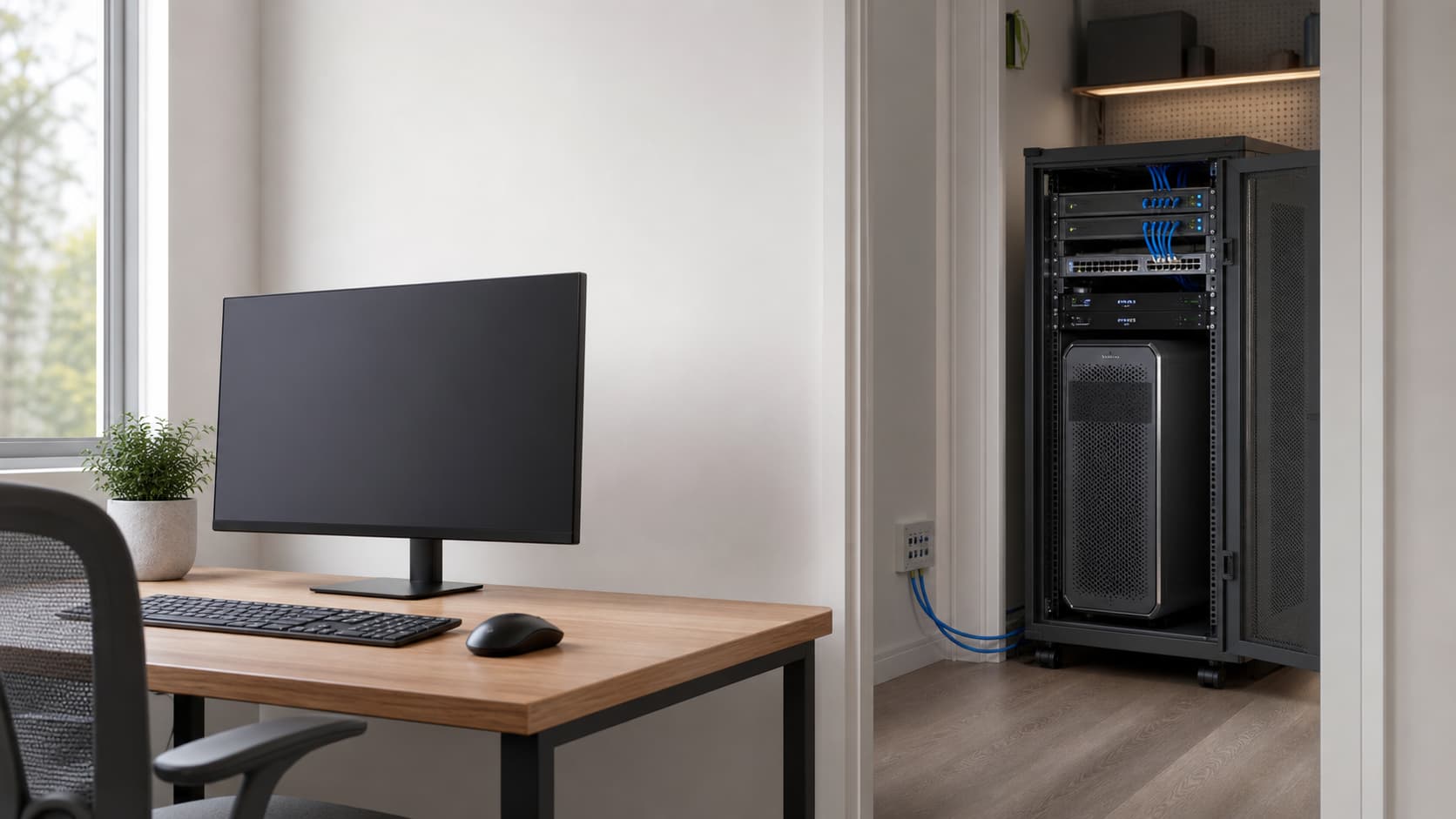
As home offices, professional content creation, server room management, and multi-room collaboration become more common, many users want to place their computer workstation in an equipment room, rack cabinet, or another room while still using a monitor, keyboard, mouse, and USB peripherals at their desk.
This setup helps reduce noise, heat, and cable clutter around the workspace. It also allows high-performance workstations to be placed in a safer, cleaner, and easier-to-maintain location.
There are two common ways to access a workstation remotely: software-based remote desktop solutions and hardware-based KVM extension systems.
Remote desktop software is suitable for light tasks such as document editing, system maintenance, and general office work. However, it may have limitations when handling high-resolution video, real-time interaction, USB peripherals, or latency-sensitive tasks.
For video editing, CAD design, control rooms, industrial environments, and other scenarios that require stable performance and low latency, a KVM extender is often a better choice.
KVM stands for Keyboard, Video, and Mouse. A KVM extender is designed to transmit video signals and USB control signals from a computer to a remote location.
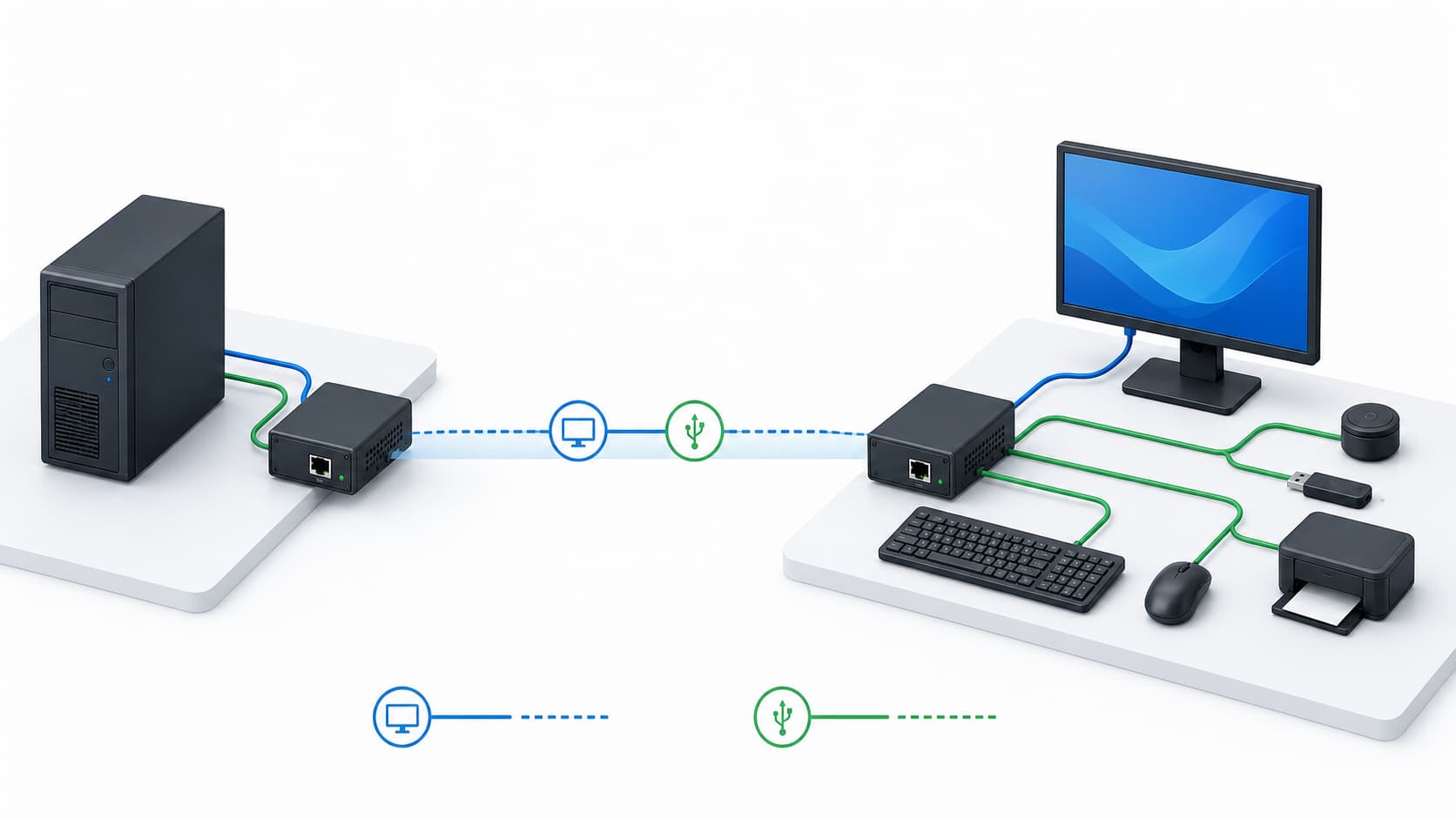
A typical KVM extension system includes a transmitter, a receiver, and a transmission medium. The transmitter connects to the computer workstation, while the receiver connects to the monitor, keyboard, mouse, and USB peripherals at the user’s desk. The two ends are usually connected through network cable, fiber optic cable, or an IP network.
Different solutions are suitable for different distances and environments.
For short-distance setups, a direct video cable and USB cable may be enough. For medium-distance office, meeting room, or equipment room connections, a network-cable-based KVM extender can be a practical option. If the transmission distance is longer, or if the environment has strong electromagnetic interference, a fiber-based solution may provide better stability.
When access needs to be extended across rooms, floors, or multiple workstations, a KVM over IP solution can be considered. This type of system is easier to manage centrally and can be expanded more flexibly in the future.
Remote workstation access is useful in many real-world scenarios.
Home office users can move a noisy desktop computer away from the desk and create a quieter workspace. Gaming and creative users can keep the performance of a powerful workstation while reducing fan noise and heat near the user area.
Designers, video editors, CAD users, and other professionals usually care more about 4K image quality, low latency, and USB peripheral support. Enterprise server rooms, control centers, and IT operation teams often focus on centralized management, security isolation, and system scalability.
When choosing a remote workstation access solution, five factors are worth considering.
• The first factor is transmission distance. The longer the distance, the more likely you will need dedicated extension hardware.
• The second factor is resolution and refresh rate. For visual work, high image quality and low latency should be prioritized.
• The third factor is USB device compatibility. You should confirm whether you only need a keyboard and mouse, or whether you also need to connect devices such as webcams, touchscreens, USB drives, audio devices, or other peripherals.
• The fourth factor is scalability. If you may need to connect multiple computers or multiple user stations in the future, it is better to consider a network-based KVM architecture from the beginning.
• The fifth factor is cabling conditions. If a stable Gigabit network is already available, an IP-based solution may be easier to deploy.
Installing a KVM extender is usually straightforward.
In a typical setup, the transmitter is connected to the video and USB ports of the computer workstation. Then the transmitter and receiver are connected through network cable, fiber optic cable, or an IP network. After that, the monitor, keyboard, mouse, and USB peripherals are connected to the receiver. Finally, power on the devices and check whether the display, keyboard, mouse, and USB devices work properly.
Most hardware-based KVM extension systems do not require extra software installation, making them suitable for offices, studios, equipment rooms, and engineering environments that need quick deployment.
If problems occur during use, start with basic connection checks.
If there is no display, check the video cable, transmission cable, and power supply. If the keyboard or mouse does not respond, confirm that the USB connection is correct and try another port or device. If the image flickers, check cable quality, transmission distance, and connector contact. If latency is high, especially in an IP-based system, check the switch performance, network bandwidth, and traffic load within the same network.
Overall, remote workstation access is not just about controlling a computer from a distance. It is about choosing the right signal extension method for the actual working environment.
For simple office tasks, remote desktop software may be enough. For high image quality, low latency, and better peripheral compatibility, a KVM extension solution is usually more stable. For enterprise-level deployments involving multiple rooms, multiple users, or multiple workstations, a KVM over IP system offers stronger scalability and management flexibility.